
Printing Templates Such as Lined or Graph Paper
You can print a template form such as lined paper, graph paper, or checklist, etc. on A4, B5, or Letter-sized plain paper.
You can also print pattern paper for many usages, such as photo album pages and kitchen mats, onto A4 or Letter-sized plain paper, matte photo paper, and other types of paper.
Printable template forms
The following templates are available:
-
Pattern paper

You can select many patterns.
-
Notebook paper
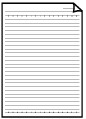
You can select three line spacing formats.
Setting on the touch screen:
-
Notebook paper 1 (8 mm)
-
Notebook paper 2 (7 mm)
-
Notebook paper 3 (6 mm)
-
-
Graph paper
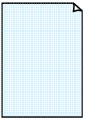
You can select three square sizes.
Setting on the touch screen:
-
Graph paper 1 (5 mm grid)
-
Graph paper 2 (3 mm grid)
-
Graph paper 3 (1 mm grid)
-
-
Staff paper
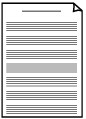
You can print staff paper with 10 or 12 staves.
Setting on the touch screen:
-
Staff paper 1 (10 staves)
-
Staff paper 2 (12 staves)
-
-
Checklist
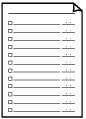
You can print a notepad with checkboxes.
Setting on the touch screen:
Checklist
-
Handwriting paper
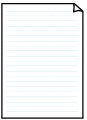
You can print handwriting paper.
Setting on the touch screen:
Handwriting paper (4 lines)
-
Weekly schedule
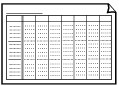
You can print a weekly schedule form.
Setting on the touch screen:
Weekly schedule (vertical)
-
Monthly schedule
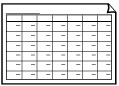
You can print a monthly schedule form.
Setting on the touch screen:
Monthly schedule(calendar)
Printing template forms
Print template form following the procedure below.
-
Load A4, B5, or Letter-sized plain paper.
When printing pattern paper, load A4, Letter-sized plain paper or matte photo paper.
-
Select
 Print on the HOME screen.
 -
Select
 Print pattern paper or
  Template print.
 -
Select template you want to print.
-
Specify settings as necessary.
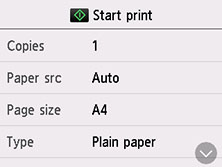
-
Copies
Specify the number of copies.
-
Paper src
Select a paper source (Rear tray/Cassette 1/Cassette 2/Auto) where paper is loaded.
-
Page size
Select the page size.
 Note
Note-
Depending on the form, some setting of page size cannot be specified. If it is selected,
 and Error details are displayed on the touch screen. In this case, select on the upper left on the touch screen to check the message and change the setting.
-
-
Type (Media type)
Select the media type.
-
2-sidedPrintSetting
Select two-sided printing or single-sided printing.
-
-
Start printing.
Press Color button for printing following forms.
-
Pattern paper
-
Notebook paper 1 (8 mm)
-
Notebook paper 2 (7 mm)
-
Notebook paper 3 (6 mm)
-
Graph paper 1 (5 mm grid)
-
Graph paper 2 (3 mm grid)
-
Graph paper 3 (1 mm grid)
-
Handwriting paper (4 lines)
Press Black button for printing following forms.
-
Checklist
-
Staff paper 1 (10 staves)
-
Staff paper 2 (12 staves)
-
Weekly schedule (vertical)
-
Monthly schedule(calendar)
-
